Community · only at Wolf Territories
Wolf Chat
Your groups, like Discord – inside the grid.
Every group you choose becomes a server with its own text channels, voice rooms, pictures, GIFs and pinned messages – and a group owner can link a channel or a voice room to Discord, so friends outside the grid can talk with you too.
Wolf Chat is in WolfViewer Welcome Home – download it below – and in WolfStorm, our web viewer.
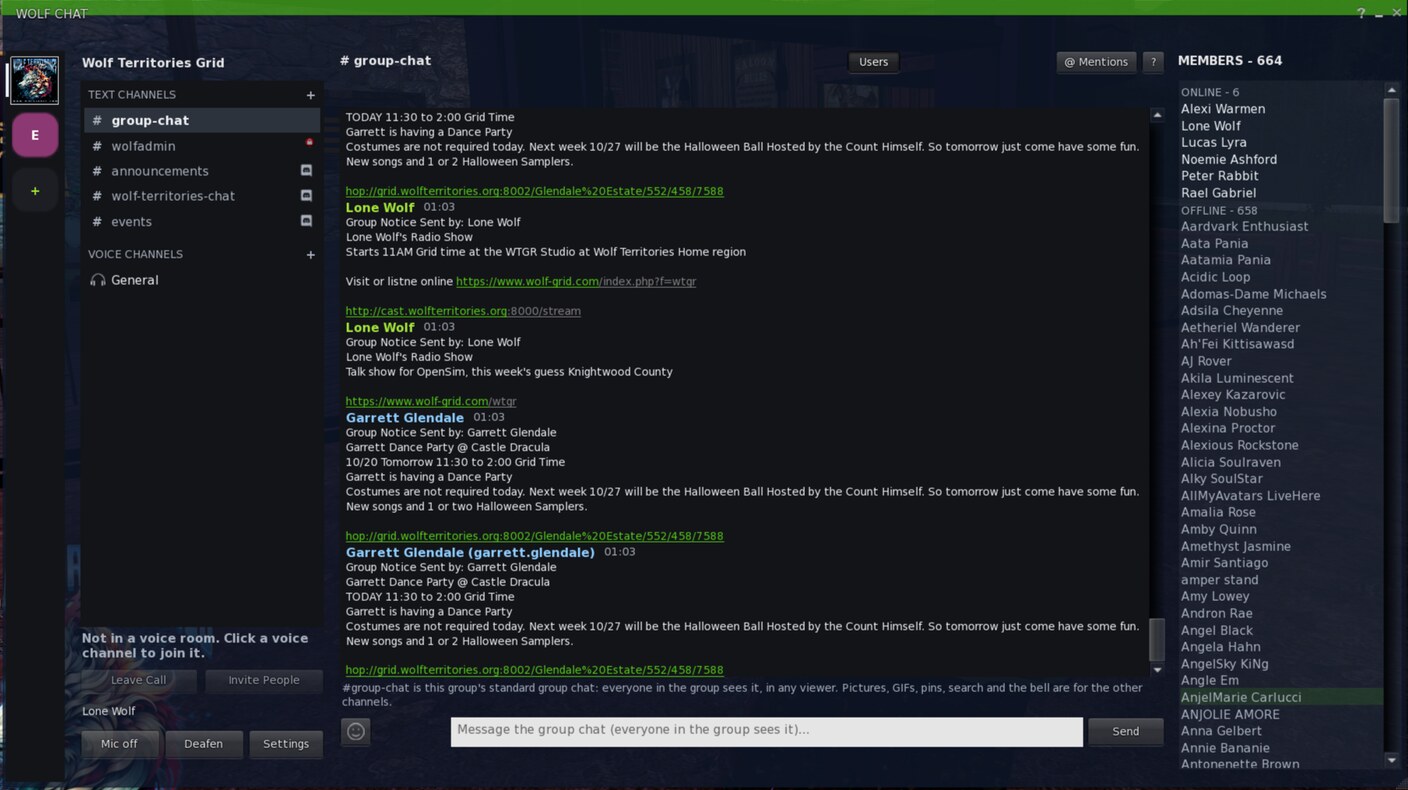
What you get
- Your groups down the left – press + to add only the ones you chat in
- Text channels and voice rooms for each group
- #group-chat in every group is the normal group chat, so everyone on any viewer sees it
- Pictures from your inventory, GIFs, emoji and pinned messages
- Who is online and offline in the group, on the right
- A bell per channel: every message, only @mentions, or nothing
- Categories you can fold away, an emoji on each channel, and your group's own banner on top
Open it
In WolfViewer choose Wolf World > Wolf Chat…, or press the Group Chat button on any of your groups. The first time, press Add a group and pick the groups you want. Removing a group from Wolf Chat does not take you out of the group.
Categories, channel emoji and your banner
Make your group look like home. Group owners can do all of this; everyone in the group sees it. In WolfStorm now; in WolfViewer from the next release.
-
Make categories
Press the small arrow beside your group's name (or right-click a heading) and choose New category…. Right-click a category, or press its +, to make a channel in it, rename it, move it up or down, or delete it.
-
Give a channel an emoji
Right-click a channel and choose Edit channel…. Pick an emoji from the grid or paste any single one – flags and skin tones work too. In the same window choose its category; Move up and Move down put it in order.
-
Add a banner
From the same arrow choose Banner and tagline…. Pick a picture from your inventory (it must be copy and transfer), choose which part to keep – top, middle or bottom – and add a tagline or message of the day of up to 100 characters. Tick the shimmer for a slow sparkle.
-
What members see
The banner tops the channel list with the group's name over it – click it to see the group. Channels in no category stay at the top; click a category's heading to fold it away, and Wolf Chat remembers that for you.
Good to know
- Deleting a category never deletes a channel: its channels move to the top.
- Members only see a category when they can see a channel in it.
- The shimmer stays still for anyone who asked their device (or WolfViewer's Reduce motion) for less motion.
- Delete and Pin on a message appear when you point at it (tap it on a phone or tablet, or move to it with the arrow keys).
Sync a whole Discord server
Bring every category and public channel of your Discord server into your group in one go – and keep them in step. You need to be an owner of the Wolf group and have Manage Server on Discord. In WolfStorm now; in WolfViewer from the next release.
-
Open the sync
In Wolf Chat press the small arrow beside your group's name and choose Sync with a Discord server…. Press Add Wolf-Bot to Discord if it is not on your server yet.
-
Get a code, type it on Discord
Press Get a code, then in any channel of your Discord server type the command it shows:
/wolfsync code:WOLF-ABCDE-FGHJK
-
Watch it come in
Your categories appear in the same order, text channels and voice rooms in them – with the emoji at the start of a Discord channel's name as its Wolf Chat emoji, and its topic under its name. Messages and voices go both ways, as linked channels do.
-
It keeps itself in step
New, renamed, moved and deleted Discord channels follow by themselves. Press Sync now in the same window any time.
Good to know
- Private channels stay private. A Discord channel that not everyone can see is kept out of Wolf Chat. An owner can choose to show one to a Wolf role in the sync window.
- A channel deleted on Discord is archived in Wolf Chat: its history is kept and it is read only. Owners can delete it.
- Channels you make in Wolf Chat stay in Wolf Chat, unless you tick Also create on Discord when you make one. That needs Wolf-Bot to have Manage Channels – add it again with the button in the sync window if you added it before.
- Up to 100 channels of a server are brought in. Threads, forums and stage channels are not.
- To stop, press Unlink from Discord in the sync window, or type /wolfunsync on Discord. The channels stay in Wolf Chat.
Link a channel to Discord
You need to be an owner of the Wolf group, and have Manage Webhooks in the Discord channel (Discord server admins have it).
-
Add Wolf-Bot to your Discord server
Once per server: open the link below, pick your server and press Authorise.
Add Wolf-Bot to Discord -
Get a link code in-world
In Wolf Chat pick your group and the text channel, right-click the channel and choose Bridge to Discord…. You get a code like WOLF-ABCDE-FGHJK. It works once and lasts 10 minutes.
-
Link it on Discord
In the Discord channel you want, type:
/wolflink code:WOLF-ABCDE-FGHJK
-
Done – talk both ways
Messages from the grid show on Discord as Name (Wolf); messages from Discord show in Wolf Chat as Name (Discord). Pictures you post in-world appear on Discord.
Unlink
Type /wolfunlink in the Discord channel, or right-click the channel in Wolf Chat and choose Unlink from Discord.
Good to know
- A linked channel shows a Discord badge in Wolf Chat: its messages can be read outside the grid.
- One Wolf channel links to one Discord channel.
- Nobody can ping @everyone or roles through the link.
- Pictures posted on Discord show in-world as “[picture on Discord]” for now, and grid links posted on Discord arrive as plain text.
- Code expired, or the link shows as broken? Get a new code and link again.
Link a voice room to Discord voice
Talk with friends on Discord as if they were in the room. Same rules as above: you need to be an owner of the Wolf group, and have Manage Webhooks on the Discord server. Comes with the next WolfViewer release.
-
Let Wolf-Bot talk
Add Wolf-Bot with the button above. If you added it before today, give it Connect and Speak on the voice channel (Edit Channel > Permissions), or add it again with the button. To show who is in the Wolf room as the voice channel's status (“🐺 In Wolf: …”), Wolf-Bot also needs Set Voice Channel Status; without it, it posts the names in the voice channel's chat instead.
-
Get a code for the voice room
In Wolf Chat right-click the voice room and choose Bridge to Discord voice…. You get a code like WOLF-ABCDE-FGHJK. It works once and lasts 10 minutes.
-
Type it in the voice channel's chat
Every Discord voice channel has its own text chat: hover over the voice channel and click its speech bubble (on a phone, open the channel and tap the bubble). There, type:
/wolflink code:WOLF-ABCDE-FGHJK
-
Done – just talk
Wolf-Bot joins the Discord voice channel whenever someone is in the room or the channel, and leaves when both are empty. People on Discord show in the room as Discord: name.
Good to know
- Voices are relayed live and never recorded. Both sides are told the room is linked.
- A voice room code only works in a Discord voice channel, and a text channel code only in a text channel.
- Wolf-Bot can be in one voice channel per Discord server at a time.
- To unlink, right-click the voice room and choose Unlink Discord voice…, or type /wolfunlink in the voice channel's chat.
Stuck? Contact us.